Continuous Monitoring (ConMon)
Operations guide for the Continuous Monitoring module in the GRC-ITSM platform, covering vulnerability review, deviation requests, alert response, and SLA tracking.
Overview
Vulnerability scan results flow into the GRC-ITSM platform continuously from the integrated scanning sources in your environment (for example Huntress and Microsoft Defender for Endpoint). The ConMon team reviews findings on a recurring cadence, determines which warrant a deviation (false positive, operational requirement, or risk adjustment) and which are genuine issues, creates the deviation requests, and escalates real vulnerabilities for remediation. Security alerts also arrive in real time when Defender detects suspicious activity, and these have tight SLA windows and require fast response.
Governing policy
This playbook executes the Continuous Monitoring & Reporting and Vulnerability Detection & Response policies and procedures, which define the binding policy statements, SLA values, and framework citations behind these steps.
ConMon Sidebar Navigation
The ConMon module is accessed from the left sidebar. Key sections:
| Section | What It Contains |
|---|---|
| Issues > All Open Issues | All current unresolved vulnerability findings |
| Alerts and Incidents > Open Alerts | Real-time security alerts requiring response |
| Tasks > ConMon Tasks | Recurring scheduled tasks |
| Deviations > All Deviations | All deviation requests (FP, OR, RA, OR RA) |
| Deviations > Pending Deviations | Deviations awaiting approval |
Vulnerability Review
Findings accumulate continuously as scan results arrive; review them on your organization's recurring cadence. Navigate to ConMon > Issues > All Open Issues to see all current findings.
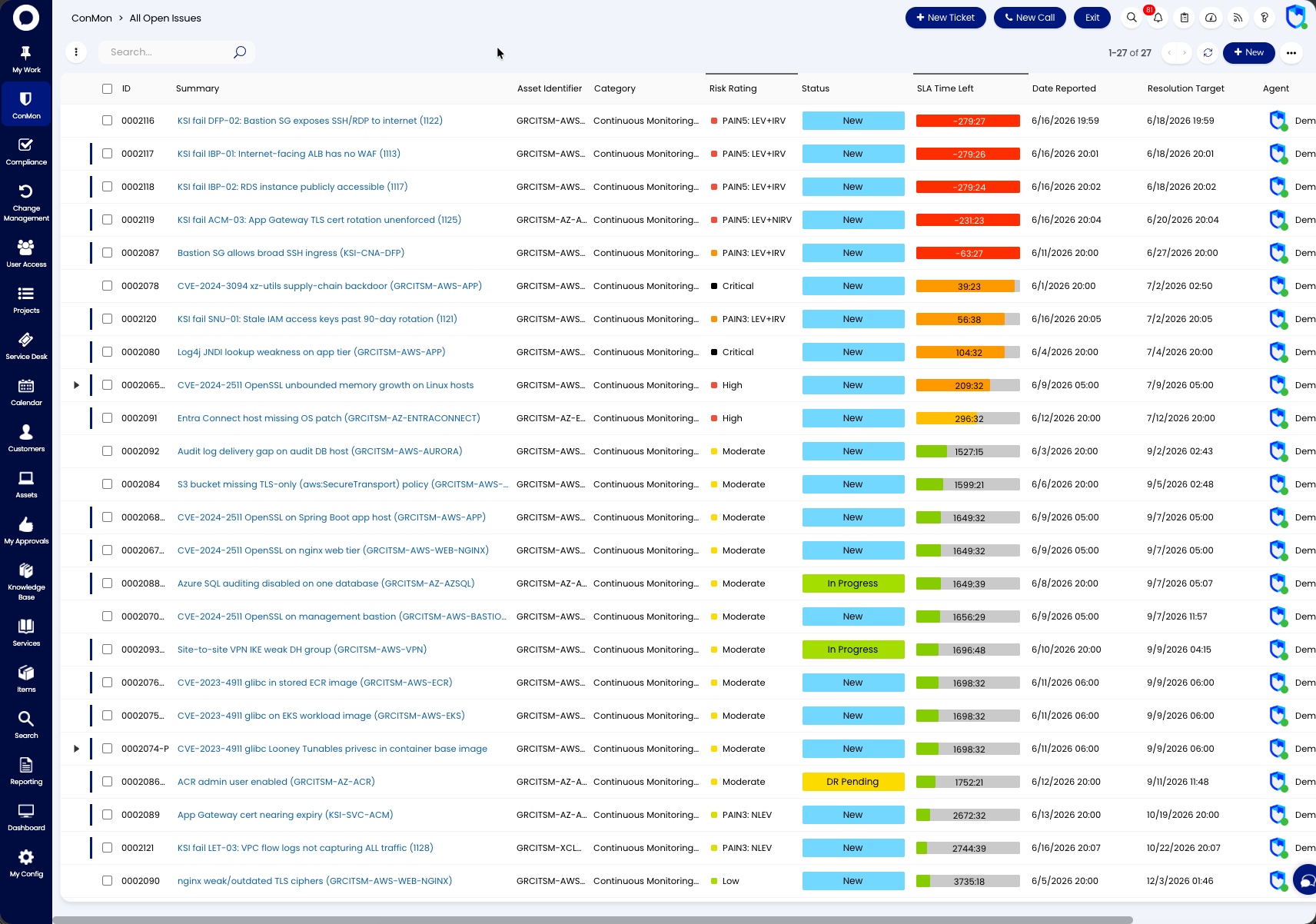
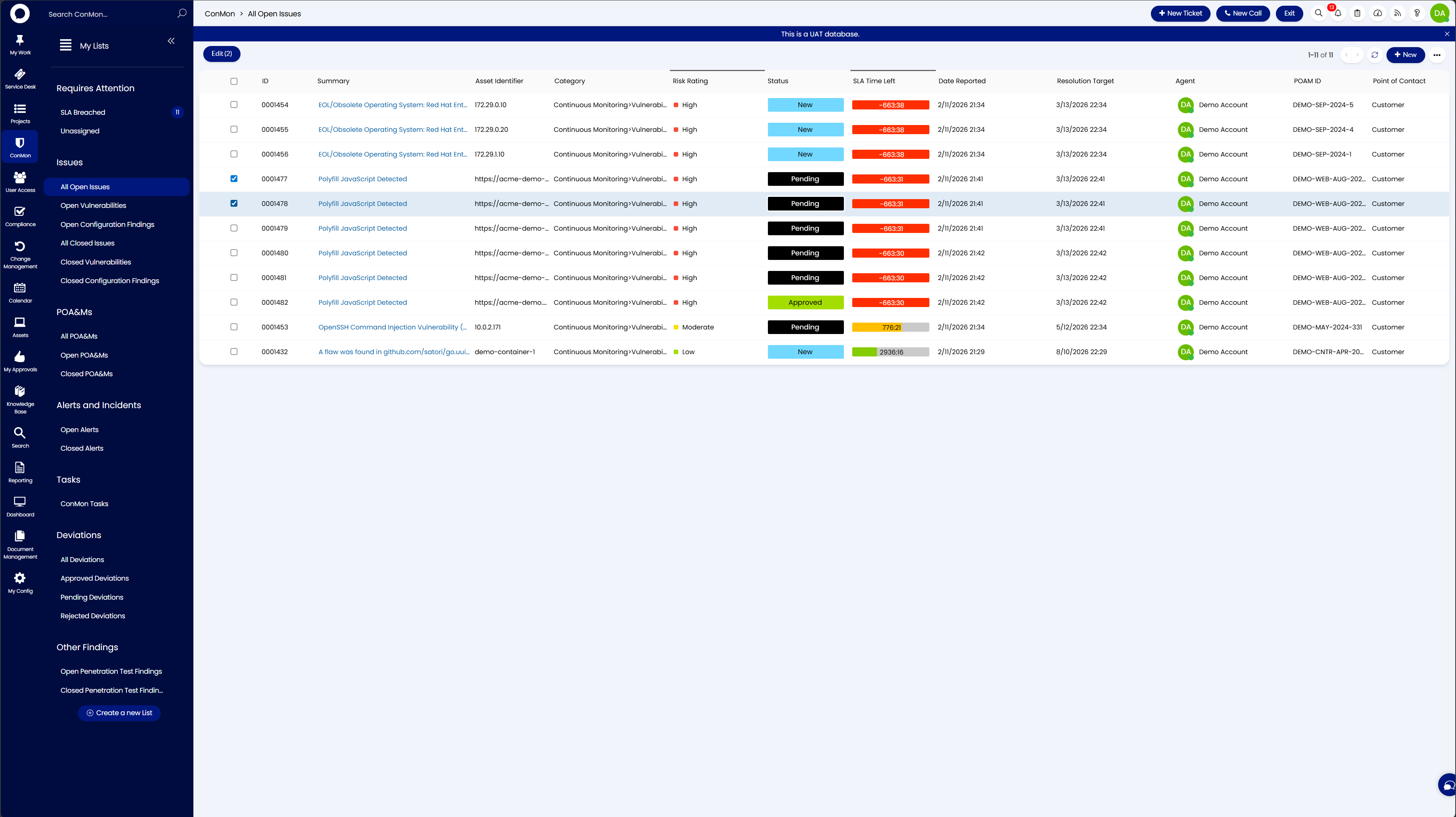
The All Open Issues view displays vulnerability findings with risk ratings, SLA timers, and statuses. Each row is a single finding with the following key columns:
| Column | Description |
|---|---|
| ID | POAM identifier |
| Summary | Description or CVE of the finding |
| Asset Identifier | Affected IP, hostname, or URL |
| Category | Finding classification (e.g., Continuous Monitoring > Vulnerability) |
| Risk Rating | Critical, High, Moderate, or Low |
| Status | New, Pending, Approved, or Overdue |
| SLA Time Left | Remaining time before remediation SLA expires. Green = on track, red/negative = breached |
| POAM ID | The linked POAM reference |
| Point of Contact | Organizational contact |
Work through the list reading each finding to determine whether it warrants a deviation or is a real issue that needs remediation.
Triaging Findings
Click any finding to open its detail view.
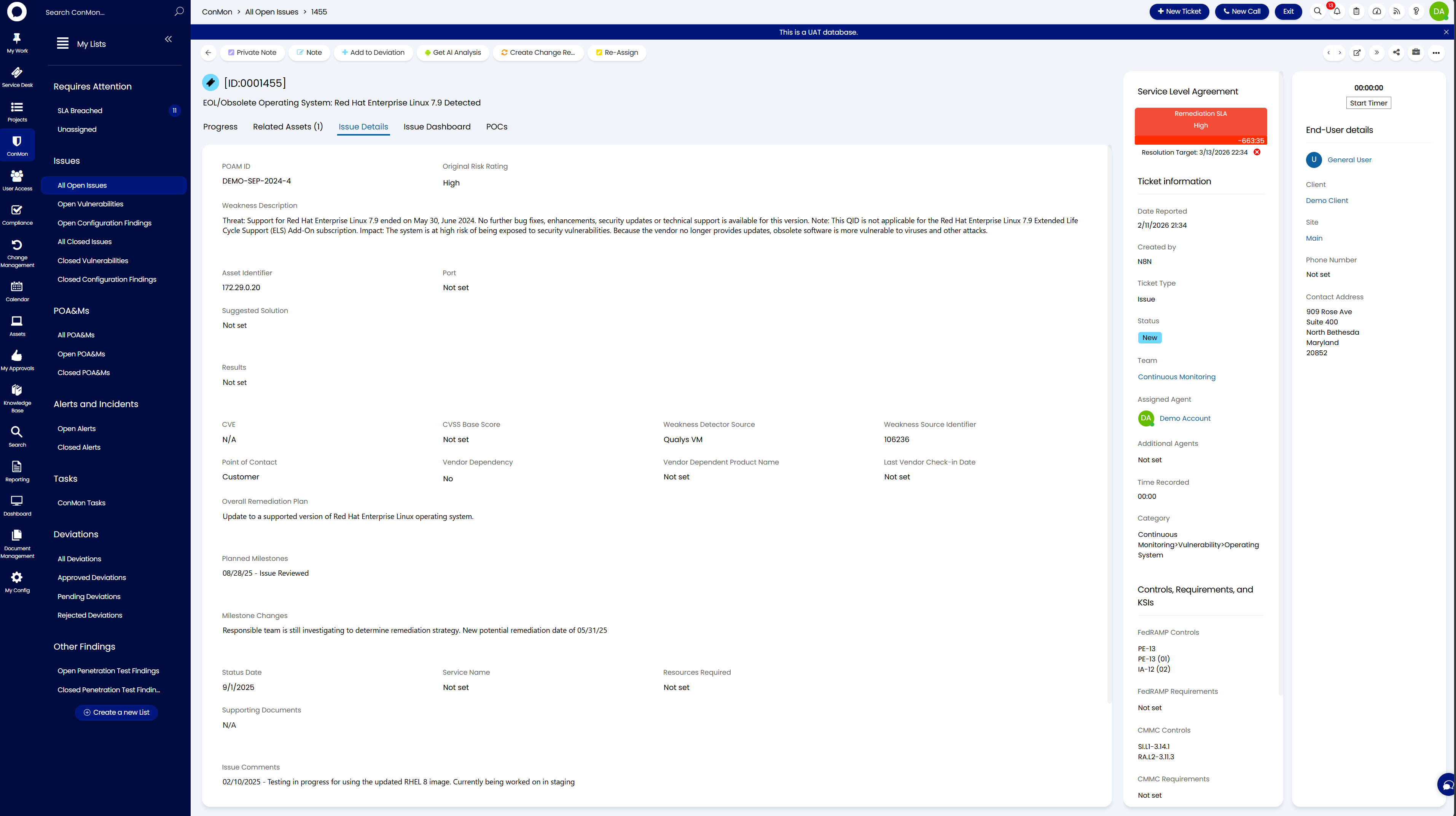
The detail view shows the summary at the top, with tabs for Progress, Related Assets, Issue Details, Issue Dashboard, and POCs. The right panel shows the SLA timer, organization, site, assigned agent, team, category, and mapped Controls, Requirements, and KSIs (including FedRAMP and CMMC control mappings).
The toolbar at the top provides action buttons including Add to Deviation, Note, Private Note, Get AI Analysis, Create Change Request, and Re-Assign.
Triage Decision
For each finding, decide:
- False positive (FP) - The vulnerability is not exploitable in this environment (e.g., FIPS configured, component out of scope, mitigating controls in place). Create a deviation request.
- Real issue - The vulnerability is present and exploitable. Escalate for remediation.
- Operational requirement (OR) - The vulnerable component or configuration cannot be removed without breaking the system's operation. Create a deviation request; ORs are often combined with a risk adjustment as OR RA.
- Risk adjustment (RA) - The vulnerability is real but is lower risk based on operational setup, or has been partially mitigated. Create a deviation request with justification.
Creating a Vulnerability Deviation Request
When a finding warrants a deviation (FP, OR, RA, or OR RA), create a Vulnerability Deviation for each POAM ID.
Step 1: Create a New Deviation Ticket
Navigate to ConMon > Deviations > All Deviations and click + New Ticket in the top right corner. This opens the new deviation form.
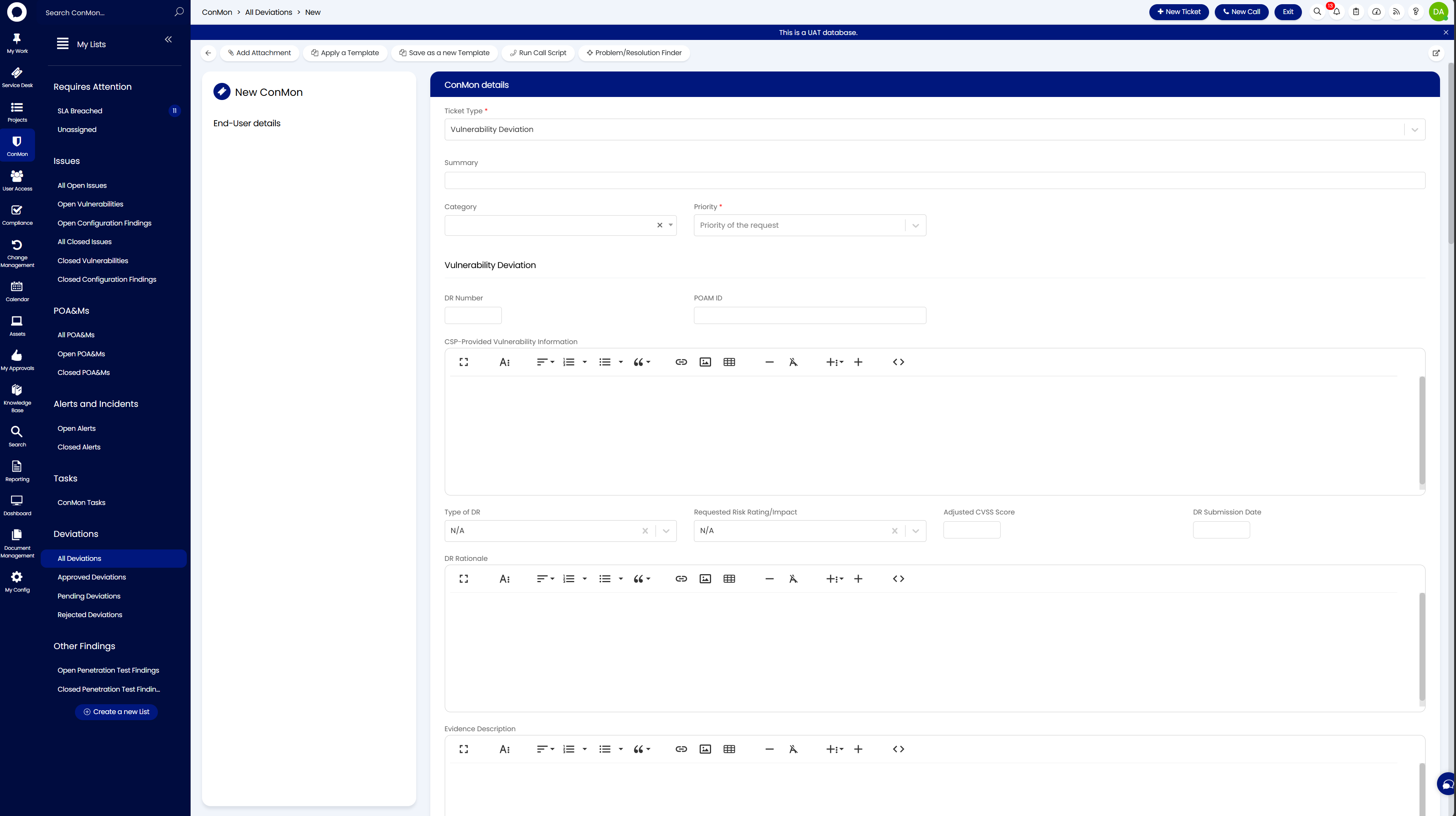
Complete the following fields:
ConMon Details (top section)
| Field | What to Enter |
|---|---|
| Ticket Type | Vulnerability Deviation |
| Summary | The CVE or vulnerability name (e.g., "OpenSSH Command Injection Vulnerability (Generic)") |
| Category | Select the appropriate category |
| Priority | Match the original finding's risk rating |
Vulnerability Deviation (middle section)
| Field | What to Enter |
|---|---|
| DR Number | Leave blank if auto-assigned, or enter the next sequential DR number |
| POAM ID | The POAM ID from the original finding (e.g., DEMO-MARCH-2023-32) |
| CSP-Provided Vulnerability Information | Paste the full vulnerability description from the finding. Include threat details, affected versions, and detection logic |
| Type of DR | FP (False Positive), OR (Operational Requirement), RA (Risk Adjustment), or OR RA (combined operational requirement and risk adjustment) |
| Requested Risk Rating/Impact | N/A for false positives; for risk adjustments, the requested lower risk rating |
| Adjusted CVSS Score | Leave blank for FPs; for risk adjustments, the adjusted score |
| DR Submission Date | Today's date |
Justification (lower section)
| Field | What to Enter |
|---|---|
| DR Rationale | Technical justification for the FP. Be specific about mitigating controls, boundary isolation, vendor statements, etc. |
| Evidence Description | What evidence supports the determination (e.g., Intune configuration, Firewall ACL export, Vendor EOL advisory) |
| List of Evidence Attachments | Attach supporting files (screenshots, config exports, vendor advisories) |
| Operational Impact Statement | If applicable, describe any operational impact |
Save the ticket once all fields are complete.
Step 2: Review the Deviation
Open the saved deviation and review it on the Vulnerability Deviation tab. Confirm the DR Number, POAM ID, Type of DR, CSP-Provided Vulnerability Information, and DR Rationale are all correct before proceeding.
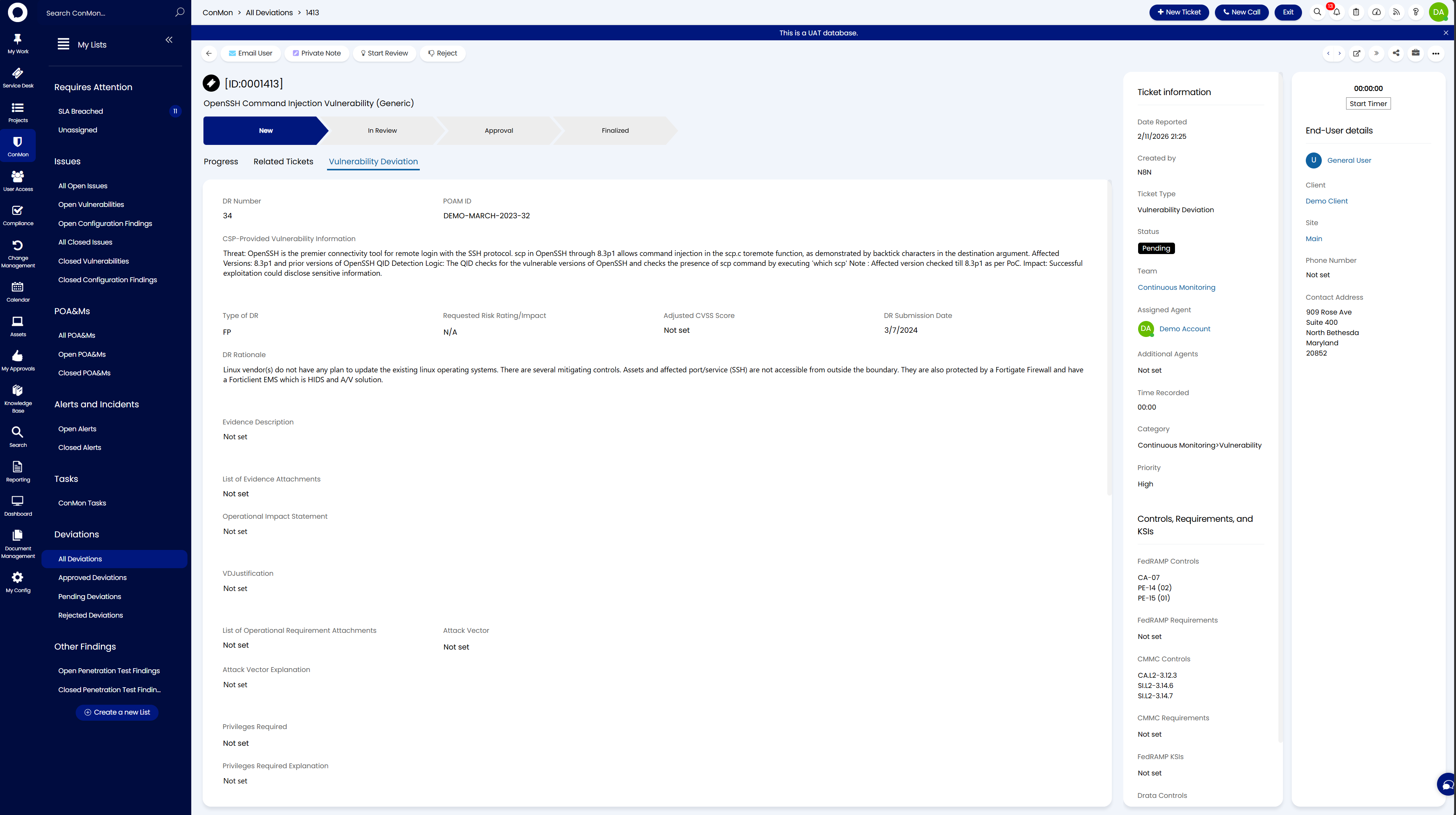
Step 3: Link Issue Tickets to the Deviation
- Navigate back to ConMon > Issues > All Open Issues
-
Use the checkboxes on the left to select all findings that this deviation covers (you can select multiple tickets at once)
-
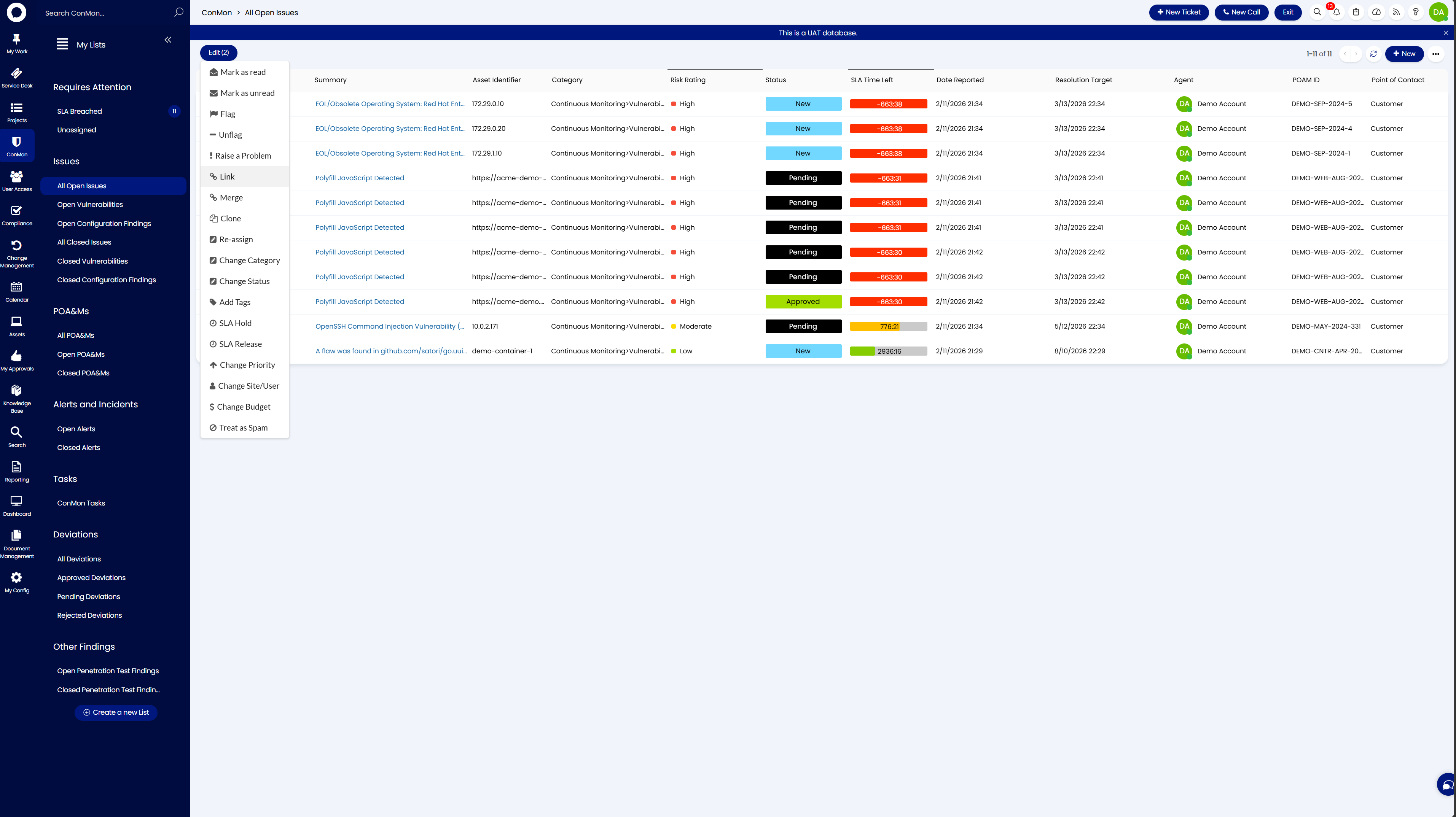
Click the Edit button in the top left to open the dropdown menu with bulk actions
-
Select Link from the menu
-
In the Link to another Ticket dialog, search for the deviation ticket you just created, select it, and click Confirm Selection
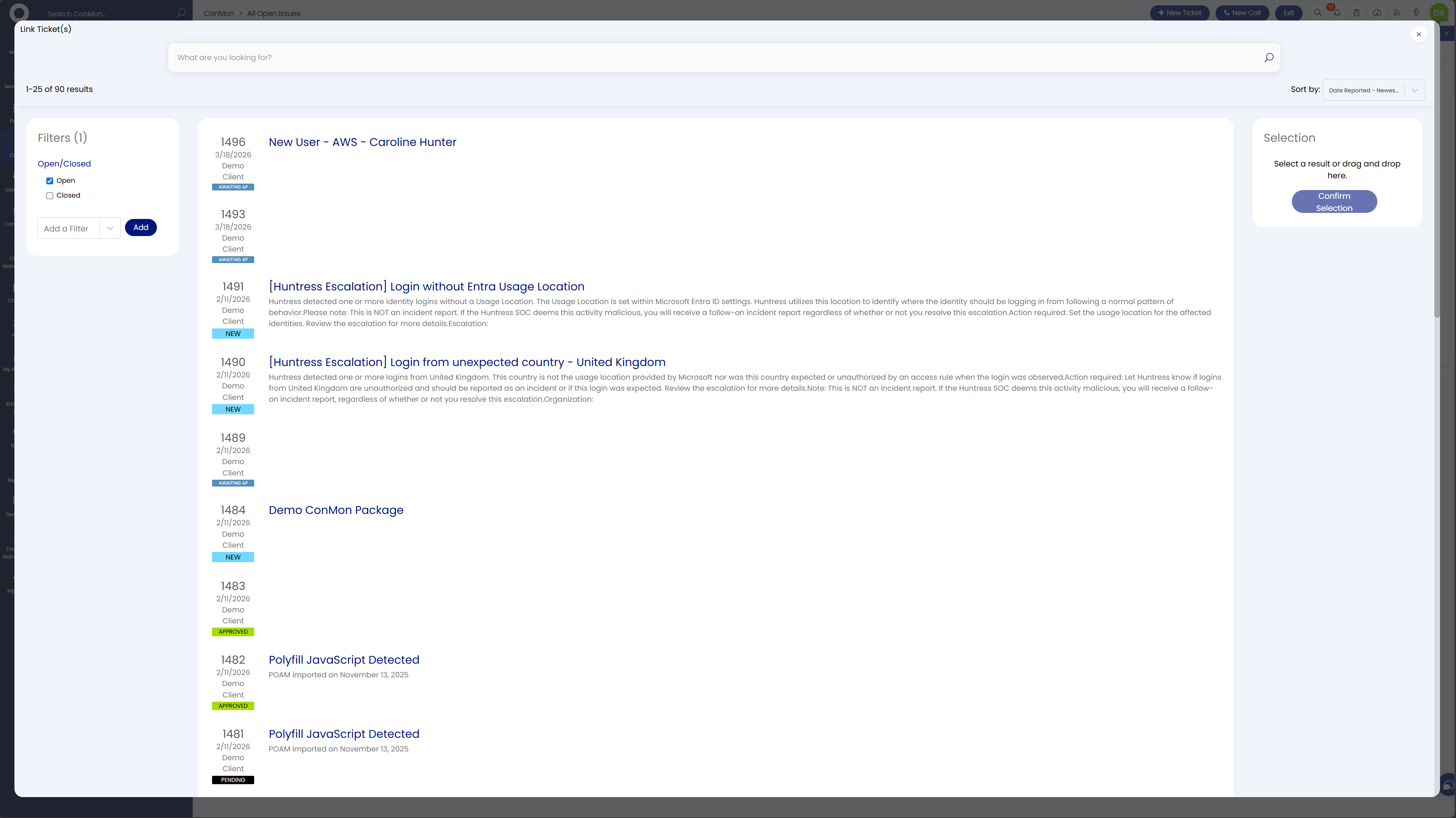
All selected findings are linked as child tickets under the deviation in one action, creating the audit trail.
Step 4: Request Deviation Approval
- Open the deviation ticket
- Click Request Deviation Approval in the toolbar
- Set the status to Awaiting Approval and add a note with the action "Request Deviation Approval"
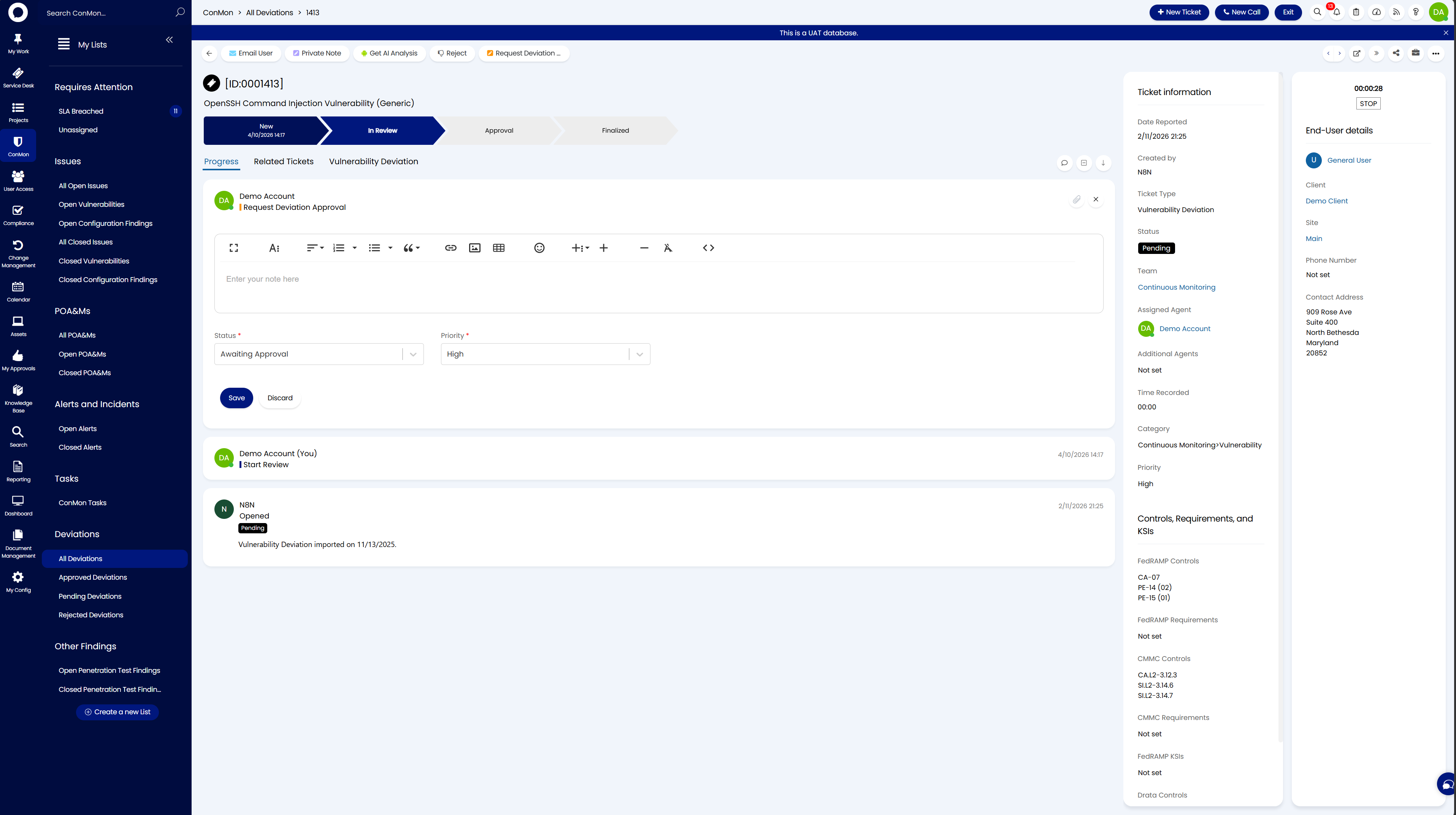
The deviation progresses through the workflow:
These stages map onto the deviation ticket statuses Pending, DR Pending, Awaiting Approval, Approved, DR Approved, Rejected, and Closed. The deviation will appear under Deviations > Pending Deviations until approved or rejected. Approval is by the Deviation Approvers CAB, with an optional organizational stage when your organization has a designated end user with the Deviation Approver role.
Escalating Real Issues
Any finding that does not warrant a deviation must be escalated to the engineering team for remediation.
- Open the finding from All Open Issues
- Confirm the vulnerability applies to the organization's environment
- Note the severity, affected assets, and recommended remediation
- Escalate to engineering with:
- CVE identifier
- Affected device count
- Recommended fix
- SLA deadline
- Track remediation progress through ticket status updates
Overdue Findings
Findings that exceed their SLA appear as Overdue with a red negative SLA timer. These require immediate attention.
Alerts and Incident Response
Security alerts arrive in real time from integrated EDR, ITDR, and security tools, such as Huntress, Microsoft Defender for Endpoint, or other solutions depending on your environment. Navigate to ConMon > Alerts and Incidents > Open Alerts.
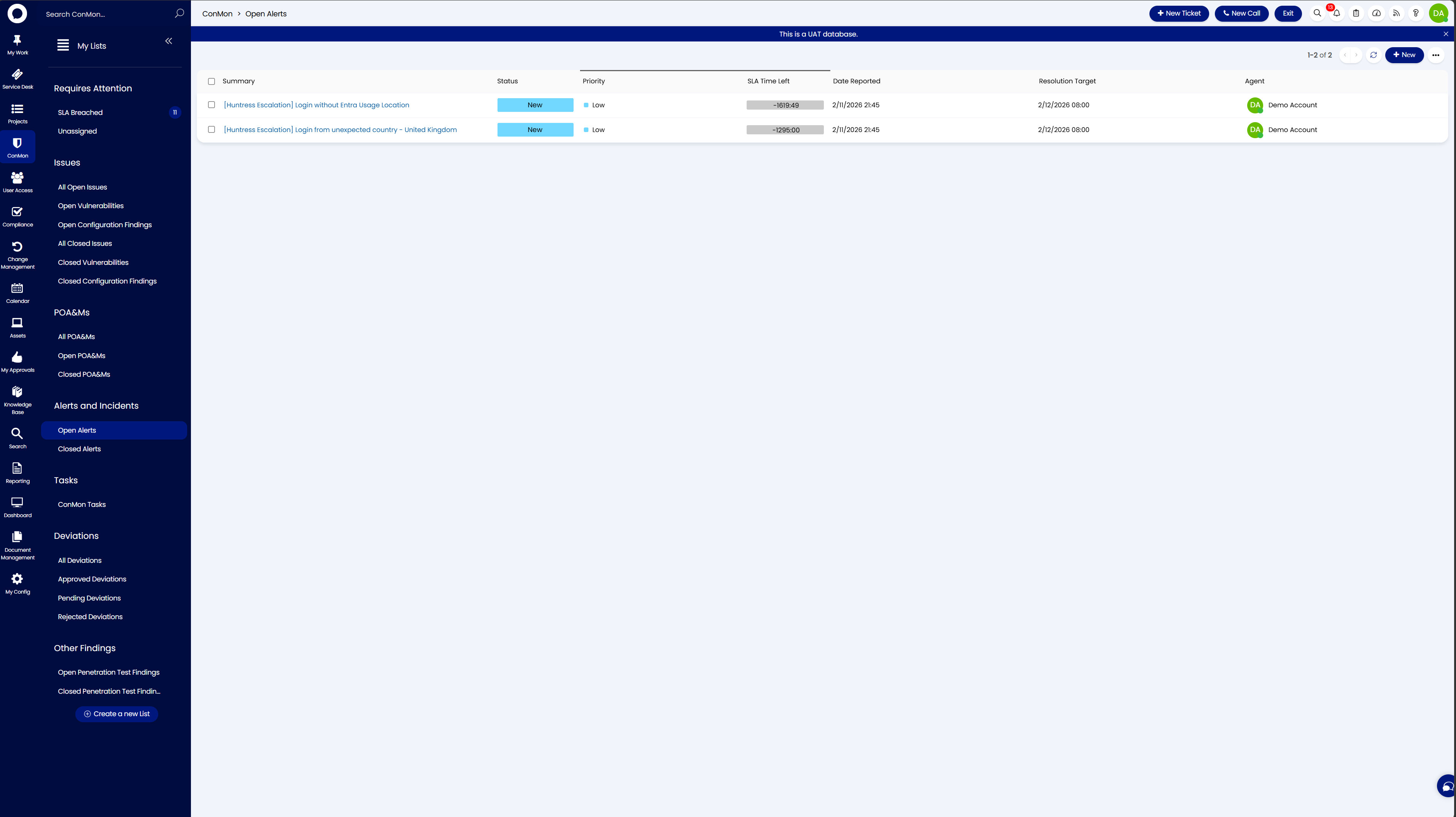
Common Alert Examples
The specific alerts you see will vary based on which security tools are integrated with your environment. Below are examples from common integrations:
Huntress (EDR / ITDR)
- Login without Entra Usage Location - An identity logged in without a configured usage location in Entra ID settings
- Login from unexpected country - A login from an unusual geographic location
- Unexpected VPN - Login through an unexpected VPN provider
- CRITICAL - ISOLATED - A critical threat detected and the endpoint was automatically isolated
Microsoft Defender for Endpoint
- Suspicious PowerShell command line - A potentially malicious PowerShell command was executed on an endpoint
- Impossible travel activity - A user account authenticated from two geographically distant locations within an improbable timeframe
- Malware detected and blocked - Defender identified and quarantined a known malware signature
Responding to Alerts
- Acknowledge - Update the alert status from New to In Progress
- Investigate - Review the login source, device, user account, and related activity. Look into the source of the alert in your EDR/ITDR console (e.g., Huntress, Defender, or other integrated tool) for additional context
- Determine - Is the activity legitimate (user traveling, authorized VPN) or malicious?
- Action - Legitimate: document and close. Suspicious/malicious: escalate the alert in place to an Incident (the same ticket converts, keeping its history; no new ticket is opened), follow the IR plan, notify organizational POC
- Document - Record all actions in the ticket progress notes
Alert SLA Compliance
Alerts have tight SLA windows. The SLA Time Left column tracks compliance. Breached SLAs show red negative values and require immediate attention.
SLA Reference
Vulnerability Remediation
Which remediation model applies depends on the baseline your system is authorized against. Both are configured as Remediation SLA policies and enforced through the platform's SLA tracking.
Remediation timelines follow the FedRAMP Continuous Monitoring Strategy Guide, which operationalizes NIST SP 800-53 RA-5 (Vulnerability Scanning) and SI-2 (Flaw Remediation) with concrete remediation windows:
| Severity | Remediation Window | Description |
|---|---|---|
| Critical | 30 days | Actively exploitable or critical-impact vulnerabilities |
| High | 30 days | High-impact vulnerabilities with significant risk |
| Moderate | 90 days | Medium-impact vulnerabilities with limited exposure |
| Low | 180 days | Low-impact vulnerabilities with minimal risk |
Remediation follows the Class Remediation SLA ladder (VDR-TFR-PVR): each issue carries a Potential Agency Impact N-rating (PAIN) assigned at ingest, and the remediation target is reduction to a lower PAIN rating within the timeframe, factoring internet reachability and likely exploitability (for example PAIN5: LEV+IRV). Two boundaries operate independently of the ladder:
- KEV findings carry the CISA KEV catalog due date per BOD 26-04, which survives full mitigation
- A vulnerability not fully mitigated or remediated within 192 days of evaluation becomes an accepted vulnerability, evidenced by an approved Vulnerability Deviation
See the Vulnerability Detection & Response policy for the full model and the Class C values.
Alerts
Alert SLAs are significantly tighter than vulnerability remediation SLAs and are configurable based on your organization's requirements. The defaults below follow incident response SLA timelines and can be adjusted to match your operational needs and contractual obligations.
| Severity | Response Time | Resolution Time |
|---|---|---|
| Critical | 30 minutes | 1 hour |
| High | 1 hour | 4 hours |
| Medium | 4 hours | 8 hours |
| Low | 8 hours | 24 hours |
Customizing Alert SLAs
These are the default alert SLA timelines configured in the platform. Your organization may adjust these based on your risk tolerance, compliance framework, or specific operational agreements.
Breached SLAs
When an SLA is breached:
- SLA Time Left turns red and shows a negative value
- The finding or alert may change to Overdue status