Agent Roles
Roles are the primary mechanism for controlling what agents can see and do within the platform. Agents hold one or more roles: a Capability role sets the permission baseline, and additional roles layer on team visibility, automatic ticket assignment, approval-board membership, notifications, and named accountability functions.
Navigation
Configuration > Teams & Agents > Roles on the GRC-ITSM website navigation.
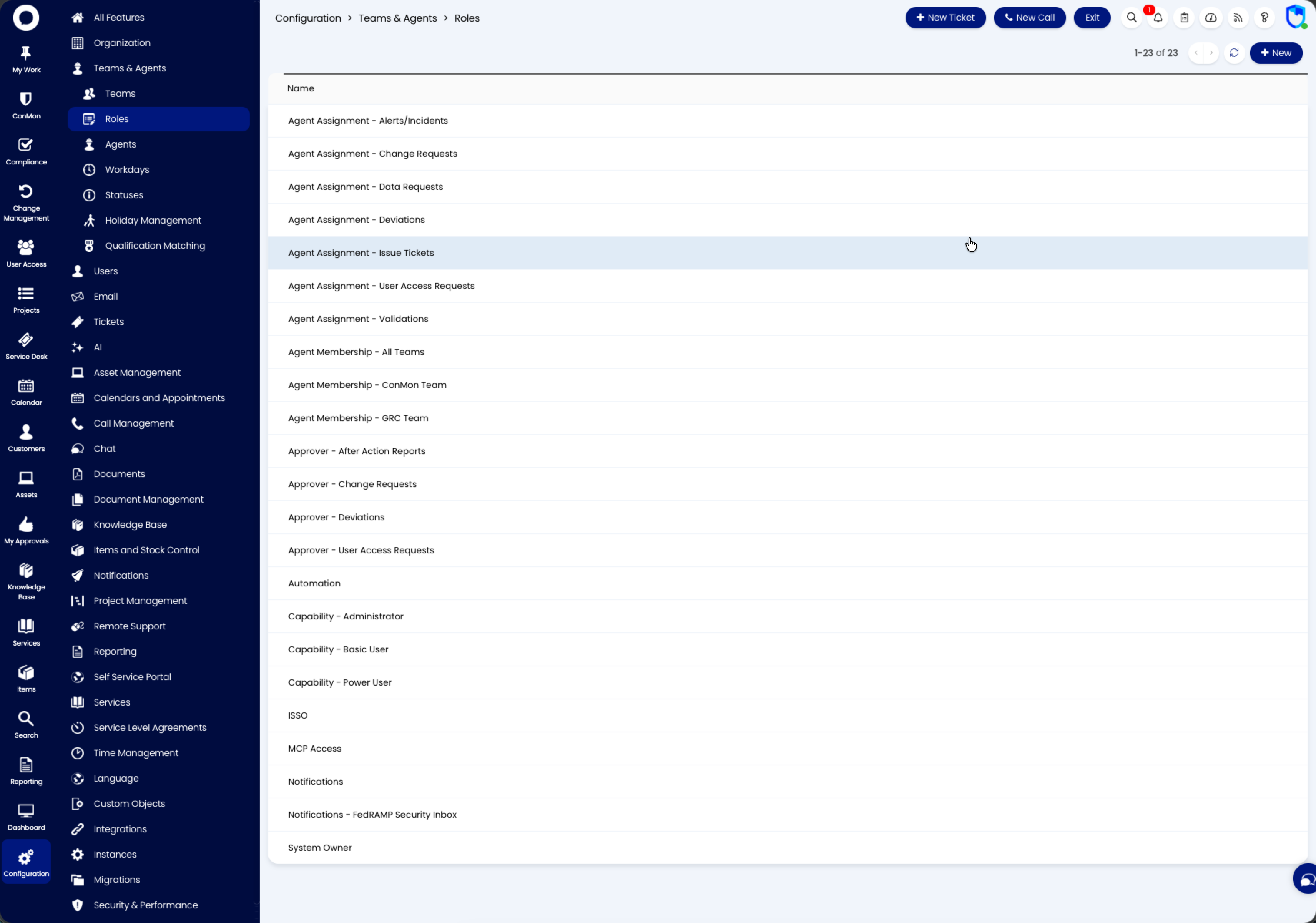
Role Families
Capability Roles
The permission baseline. Every agent holds exactly one:
| Role | Access |
|---|---|
| Capability - Administrator | Full access to all platform areas including configuration, integrations, and system settings |
| Capability - Power User | Elevated day-to-day access without configuration authority |
| Capability - Basic User | Standard access to tickets and operational functions |
Agent Membership Roles
Team visibility scoping -- which team's queues the agent sees:
| Role | Visibility |
|---|---|
| Agent Membership - All Teams | Full visibility across all teams and queues. Use for agents who work across both ConMon and GRC |
| Agent Membership - GRC Team | Scoped to the Governance, Risk and Compliance team: compliance assessments, policy work, access reviews, audit preparation |
| Agent Membership - ConMon Team | Scoped to the Continuous Monitoring team: vulnerability reviews, deviation processing, flaw remediation, ConMon reporting |
This split is useful where different people handle ConMon operations versus broader compliance governance; agents who work across both areas take the All Teams role.
Agent Assignment Roles
Automatic ticket assignment. Holding one of these places the agent in the assignment pool for that ticket type -- new tickets are assigned a tracking owner from the pool automatically:
- Agent Assignment - Alerts/Incidents
- Agent Assignment - Change Requests
- Agent Assignment - Data Requests
- Agent Assignment - Deviations
- Agent Assignment - Issue Tickets
- Agent Assignment - User Access Requests
- Agent Assignment - Validations
Assignment confers tracking ownership, not approval authority -- the assigned agent shepherds the ticket but never approves it.
Approver Roles
CAB membership. Each Approver role grants membership in the corresponding Change Advise Board, and approval authority comes only through the CAB:
| Role | Grants membership in |
|---|---|
| Approver - Change Requests | Change Approvers CAB |
| Approver - User Access Requests | User Access Request Approvers CAB |
| Approver - Deviations | Deviation Approvers CAB |
| Approver - After Action Reports | After Action Report Approvers CAB |
Because CAB membership is role-based, granting or revoking one of these roles is the complete membership operation -- no separate CAB member list to maintain, and access reviews audit approval authority by auditing role assignments.
Notification Roles
- Notifications -- enables platform email notifications for the agent or service account
- Notifications - FedRAMP Security Inbox -- defines who is notified of inbound FedRAMP mail; at least three people hold this role per the Incident Response policy
Named and Service Roles
| Role | Purpose |
|---|---|
| Automation | Service role for the platform's automation runbooks and workflow processes |
| ISSO | The Information System Security Officer accountability role -- reviews the policy-and-procedure documents on their cadence |
| System Owner | The System Owner accountability role -- approves policy documents and designates the senior security official for Emergency messages |
| MCP Access | Service access for the platform's MCP integration tooling -- the role agents need to work with AI against the tenant |
| N8N | Service access for the n8n automation stack |
How Roles Work
Permission Inheritance
Roles use a highest-access-wins model:
- The role defines the base permissions for the agent
- Individual permissions can be overridden at the agent level, but only to add access
- If the role grants full access to an area, it cannot be lowered at the agent level
- A permission set to "Not Set" at both the role and agent level means no access
This means roles should be designed conservatively: grant the minimum access needed, and use agent-level overrides only when a specific individual needs something beyond what their role provides.
What Roles Control
| Permission Area | Description |
|---|---|
| Entity access levels | Read and Modify, Read Only, or Not Set for tickets, users, and other entities |
| Ticket permissions | Creating tickets, editing closed tickets, viewing unassigned tickets, reassigning, changing ticket types |
| Team visibility | Which teams' ticket queues the agent can see |
| Ticket type access | Which ticket types the agent can work with |
| Configuration access | Whether the agent can modify specific platform configuration areas |
| Reporting access | Which reports and dashboards the agent can view |
| Field visibility | Which ticket fields are visible to agents in this role |
Creating a Role
- Navigate to Configuration > Teams & Agents > Roles
- Click New
- Set the role name and configure the permission areas
- Save the role
Once created, the role can be assigned to agents via the Agent Details tab. Roles can also be mapped to Azure security groups through the Halo Integrator's Microsoft Entra ID synchronization, so agents imported from Entra ID are automatically assigned the correct role based on their group membership.
Best Practices
Use roles, not agent-level overrides. Configure permissions at the role level wherever possible. Agent-level overrides are harder to audit and can create inconsistencies when multiple agents should have the same access.
Start with least privilege. Begin with a Capability baseline and add the specific Membership, Assignment, and Approver roles the agent's function requires. It is easier to grant additional access than to identify and revoke excess permissions after the fact.
Keep assignment and approval separate. The role families enforce the separation deliberately: an agent can hold Agent Assignment - Deviations (tracks the ticket) without Approver - Deviations (votes on it). Granting both to the same person weakens the review.
Review roles periodically. Role assignments are the audit surface for team visibility, assignment pools, and CAB membership alike. Review them as part of periodic access reviews to ensure agents have appropriate access for their current responsibilities. This supports FedRAMP AC-2 (Account Management) and CMMC AC.L2-3.1.1 (Authorized Access Control).
Role Management
Role assignments are access decisions, so they run through the same governance as every other account action:
Granting and revoking
Role changes are requested as User Access Requests (an Account Modification, or Privileged Account Management where the role confers elevated access such as Capability - Administrator or an Approver role). The UAR is approved by the User Access Request Approvers CAB and writes dated machine validation evidence, so every role an agent holds traces back to an approved, auditable request. The mechanical assignment then happens on the agent record (Agent Details) or flows in automatically from Entra ID group membership.
Recertification
Role assignments are re-examined on the recurring account recertification and account compliance reviews defined in the Access Management policy -- confirming each agent still needs each role they hold, with removals processed as UARs. Because Approver roles ARE CAB membership, recertifying roles is also the recertification of approval authority.
Automation via Entra ID
Where roles are mapped to Microsoft Entra ID security groups through the Halo Integrator, group membership in the identity provider is the source of truth: adding or removing an agent from the mapped group applies the role change on the next sync. Manage the group memberships under the same UAR governance -- the sync automates the mechanics, not the approval.