Ticket Templates
Ticket templates define reusable ticket structures that can be applied when creating new tickets. Instead of filling out the same fields and creating the same child tasks from scratch each time, a template pre-populates the ticket with its configured values, related assets, and child task structure.
Navigation
Configuration > Tickets > Templates on the GRC-ITSM website navigation.
Overview
The Ticket Templates page lists all configured templates, organized by group. Each template has a name and belongs to a group that categorizes its purpose.
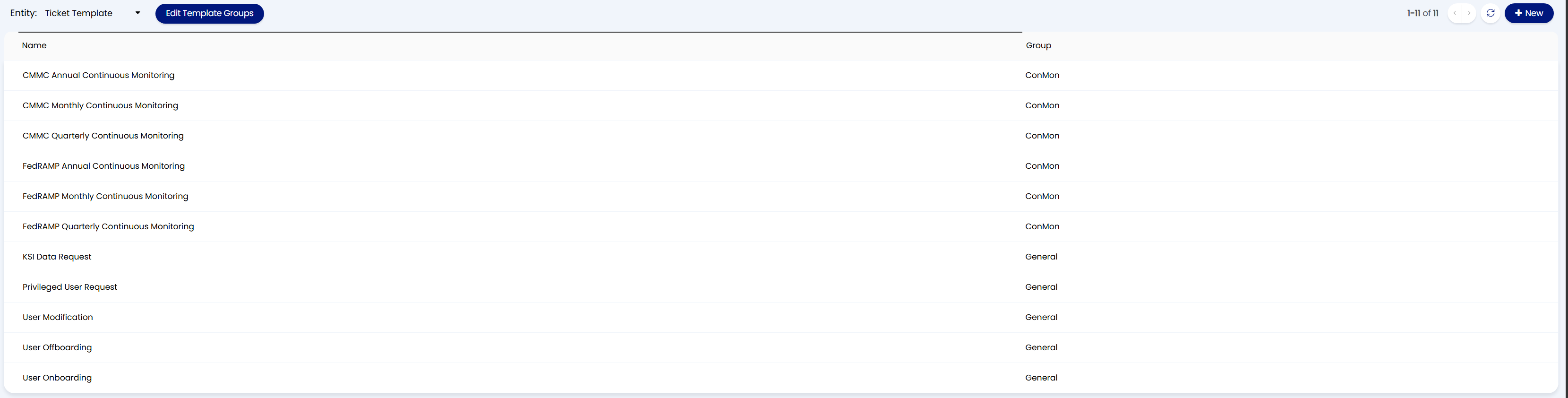
Templates are typically organized into groups that reflect the area of the platform they support. For example:
| Group | Templates |
|---|---|
| ConMon | Continuous monitoring cycle templates for CMMC and FedRAMP (monthly, quarterly, annual) |
| General | Operational templates for common requests like user onboarding, offboarding, modifications, and data requests |
Use the Edit Template Groups button to create or manage groups, and the New button to create a new template.
Template Structure
Each template is configured across several tabs:
| Tab | Purpose |
|---|---|
| Details | The template name, group, ticket type, and description |
| Values | Pre-populated field values that will be applied when the template is used (e.g., category, priority, assignment, custom fields) |
| To-Do List | Pre-defined checklist items that will be added to the ticket |
| Related Assets | Assets that will be automatically linked to the ticket |
| Children | Child ticket templates that will be created as project tasks or sub-tickets when the template is used |
| Attachments | Files that will be attached to the ticket on creation |
Child Templates
The Children tab is where templates become particularly powerful for project-based work. Templates listed here are automatically created as child tickets when the parent template is used, giving you a complete project structure in a single action.
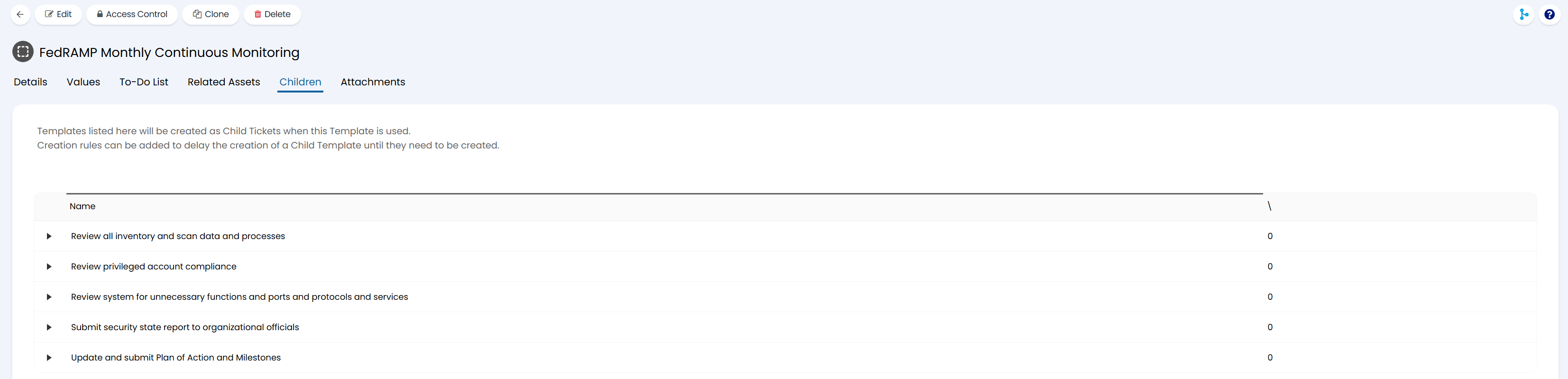
In the example above, the FedRAMP Monthly Continuous Monitoring template includes five child task templates:
- Review all inventory and scan data and processes
- Review privileged account compliance
- Review system for unnecessary functions and ports and protocols and services
- Submit security state report to organizational officials
- Update and submit Plan of Action and Milestones
When an agent creates a new project using this template, all five child tasks are created automatically, each with their own pre-configured details, assignments, and checklists. The agent doesn't need to remember which tasks to create or what each one should contain.
Creation Rules
Child templates support creation rules that delay the creation of a child ticket until certain conditions are met. This is useful when some tasks in a project should only be created after earlier tasks are completed, or when a child ticket is only relevant under certain conditions.
Common Template Patterns
Continuous Monitoring Templates
The ConMon group typically includes templates for each compliance framework and review cadence:
- Monthly - recurring monthly review tasks (vulnerability review, privileged account compliance, POA&M updates)
- Quarterly - broader quarterly assessments and reporting
- Annual - annual assessment preparation and evidence gathering
These templates pair with Scheduled Tickets to automatically generate ConMon projects at the required cadence. The scheduled ticket fires on a recurring schedule and applies the template, creating the full project with all child tasks ready to be assigned and worked.
User Access Templates
The General group includes templates for standard user access lifecycle actions:
- User Onboarding - provisioning checklist for new user setup
- User Offboarding - access revocation checklist for departing users
- User Modification - steps for adjusting existing user permissions
- Privileged User Request - elevated access request with additional review steps
These templates standardize access management workflows and ensure no steps are missed, supporting compliance with FedRAMP AC-2 (Account Management) and CMMC AC.L2-3.1.1 (Authorized Access Control).
Creating a Template
- Navigate to Configuration > Tickets > Templates
- Click New
- Configure the Details tab: set the template name, assign it to a group, and select the ticket type
- Configure the Values tab: pre-populate any fields that should be set automatically (category, priority, team, custom fields)
- Add Children if this is a project template: create child ticket templates for each task in the project
- Optionally configure To-Do List, Related Assets, and Attachments tabs
- Save the template
The template is now available for use when creating new tickets of the configured type.
Using a Template
When creating a new ticket, select the template to apply. The platform populates the ticket with the template's pre-configured values and creates any child tickets defined in the Children tab. The agent can then adjust dates, assignments, or details as needed for the specific instance.
For project-based templates, this is the workflow described in the Project Management guide - apply a template to get a fully structured project with all tasks ready to go.