AI
GRC-ITSM is built to be operated by AI assistants. Claude connects to your instance through the Model Context Protocol (MCP) -- an open standard that lets an AI assistant call a platform's functions the same way an integration would -- and works inside the same governed workflows as any human agent: the ticket is still the audit trail, the approval is still the evidence, and every action is attributed to a named identity.
Quick Summary
- The platform exposes an MCP endpoint that AI assistants connect to. Each member signs in through OAuth, so AI actions run under their own agent identity and are attributed and auditable like any other agent activity.
- AI can read and operate across the platform: tickets and service desk work, assets and inventory, security documentation, compliance data, continuous monitoring, reporting, and the knowledge base.
- The Stratus GRCITSM marketplace adds guided workflows on top -- authoring and generating your SSP or Security Decision Record, closing its gaps, adopting the templated policy library, running projects and supporting the recurring Operations Meeting, answering FedRAMP and CMMC questions with citations, and applying bulk changes safely.
- Setup has two halves: configure the OAuth connector in your instance and add it to claude.ai (it is then available in chat, Cowork, and Claude Code), and install the plugin marketplace by uploading the plugin ZIP to your Claude organization.
How AI interacts with the platform
Your instance exposes its capabilities to AI through MCP. When Claude is connected, it sees a catalog of platform operations -- lookups, searches, reports, and record updates -- and calls them on your behalf as you work in a conversation.
Three properties keep this governed:
| Property | What it means |
|---|---|
| Your identity, not a shared one | Each member signs in to the instance through OAuth, so AI acts as that person's own agent account -- never anonymously, and never through a shared credential. The MCP Access role gates which agents can use the MCP tooling. |
| Same rules as any agent | AI calls go through the platform's service layer, so ticket workflows, field validation, approval processes, and SLAs apply exactly as they do in the UI. |
| Attributed audit trail | Every record an AI assistant touches shows the acting agent identity, so AI-assisted work is distinguishable and reviewable after the fact. |
Reads and writes are treated differently in practice: lookups and reports are safe to let AI run freely, while anything that changes a record requires your explicit approval before it executes. The recommended Claude configuration enforces exactly that split.
Related documentation
- Agent Roles -- the MCP Access role that grants agents service access for AI integration
- Reporting -- the MCP report variants that back the platform's AI integration
- Change Management Policy -- introducing a new AI capability that touches federal data is a transformative change
- Operations Meetings -- the recurring meeting that runs a certified system from its GRC-ITSM records, which AI helps prepare and close (how it works)
What AI can do
The MCP catalog spans the whole platform. Rather than a list of individual functions, think of it as capability areas:
| Area | What AI can do |
|---|---|
| Service desk & tickets | Search, summarize, create, and update tickets across every ticket type; triage queues; set priorities and SLAs; add notes; manage ticket relationships |
| Assets & inventory | Query the asset inventory, create and update assets, and maintain the relationships that define your authorization boundary |
| Security documentation | Read and author the OSCAL-aligned foundation the platform holds -- system information, components, control implementations, implemented requirements, and implementation narratives -- that your security documentation renders from |
| Controls & requirements | Look up control baselines, control details, parameters, and requirement mappings for the frameworks your system is certified against |
| Continuous monitoring | Query open and closed findings, vulnerability details and history, deviations, accepted risks, significant changes, and Key Security Indicator status |
| Projects & operations | Create and structure Projects and Project Tasks, set and read budgets, log time, and post outcome notes to the tickets a decision concerns -- the records an Operations Meeting works from and writes back to |
| Reporting & knowledge base | Run platform reports, search and author knowledge base articles, and pull the data behind your Trust Center reporting |
One foundation, two artifacts
Under the FedRAMP Consolidated Rules for 2026, the Security Decision Record replaced the traditional System Security Plan with a persistently maintained record of the security decisions made across a service's lifecycle. This holds on both tracks, not just 20x: a Rev5 certification under the 2026 rules produces an SDR too, carrying per-control summaries where a 20x SDR carries Key Security Indicator summaries.
Whichever your package requires, it renders from the same asset foundation the platform holds -- components, implemented requirements, and implementation statements, modeled on OSCAL -- so authoring that foundation serves both. Machine-readable output is produced as schema-valid FedRAMP JSON. See Certification Package & SDR Maintenance for how the SDR is produced and kept current.
On top of the raw catalog, the grcitsm-analyst plugin (from the Stratus GRCITSM marketplace, below) adds guided multi-step workflows over that foundation:
- Onboarding -- build the full system definition from scratch through documents, interviews, or both, assembled locally and written in one approved pass (how it works)
- Generation -- render the security documentation from current platform state
- Ingestion -- turn policies, procedures, and interview transcripts into documentation content, with row-level approval before anything is written
- Interviewing -- author content from scratch through conversation
- Gap remediation -- after onboarding, a gap register ranks what the documentation still lacks, per baseline. Gaps are grouped into named remediation actions, each a task on the onboarding Project, with the evidence that closes it named up front
- Policy library adoption -- fetch the current templated policies and procedures from this site, adapt the organization-defined values through a short interview, and import each as a knowledge base article bound to the component it governs, so the documents also feed the SSP or SDR as evidence
- Project management -- create and structure Projects and Project Tasks, set budgets, attribute time, and read budget burn-down, following the platform's project conventions
- Ticket updates -- priority, SLA, dates, and custom fields, each change carrying a note, one ticket or a batch at a time
- Webhook integration help -- compose and troubleshoot the payloads your scanners and alert sources post to the platform's incoming webhooks. The assistant drafts them; it never posts one
- Disciplined bulk writes and reads -- plan any large change to a reviewable file first, then apply it step by step; sweep large read sets through a cache instead of one call at a time
Running a system week to week through the recurring Operations Meeting uses these same building blocks; the guided commands for it are not yet available. See Run your system for what is available today.
Ask questions, not just operate
The marketplace is also a research assistant for the compliance and platform knowledge around your system:
- FedRAMP and CMMC questions, answered with citations. The plugin bundles the FedRAMP 2026 Consolidated Rules, the FedRAMP 2026 narrative corpus, the Rev5 baselines, and the CMMC reference corpus. Ask "what does AC-2 require?", "which controls map to KSI-IAM-AAM?", or "what does CMMC AC.L2-3.1.1 require?" and get answers grounded in the requirement text rather than the model's memory. Requirement answers are routed through an accuracy-review gate before they reach you.
- What your automated checks cover. The plugin carries the catalog of the Steampipe/Powerpipe compliance checks -- which Key Security Indicators each cloud provider's checks cover, which indicators have no automated check and need manual evidence, and how the compliance exemption tags work.
- Learning GRC-ITSM itself. This documentation site is indexed for AI lookup, so Claude can answer "how do I configure email rules?" or "what is the User Access Request workflow?" by reading these docs directly.
- Underlying Halo platform questions. For product details of the underlying Halo platform, we recommend the Context7 documentation index, which indexes the Halo guide library in AI-readable form.
Connect Claude to your instance
The recommended path is a single OAuth connector: configure it once in your instance, add it to claude.ai, and it becomes available everywhere your organization uses Claude -- chat, Cowork, and Claude Code. You set up the OAuth application members authenticate through, enable the MCP endpoint, and register the connector in claude.ai. Agents who will use the connection need the MCP Access role; in a governed tenant, request and approve role grants through a User Access Request as described in Agent Roles.
1. Set up the Claude MCP OAuth application
The connector authenticates through an OAuth application named Claude MCP OAuth in your instance, which Stratus provisions on tenants as part of delivery -- check for it before creating one.
- Go to Configuration > Integrations > Halo API and open Applications.
- If Claude MCP OAuth already exists: open it and click Generate next to Client Secret to issue a fresh secret. Copy it immediately -- it is shown once, and generating a new secret stops the old one from working.
- If it does not exist, create it:
- Name it
Claude MCP OAuthand leave Active checked. - Set Authentication Method to Authorisation Code (Native Application).
- Under Client Secret, choose Use a client secret for the token request and Generate a secret. Note the Client ID -- it can change on first save, so re-check its value after saving.
- Set both Login Redirect URL and Logout Redirect URL to
https://claude.ai/api/mcp/auth_callback. - On the Permissions tab, grant only the permissions the connection requires.
- Name it
2. Enable the MCP endpoint
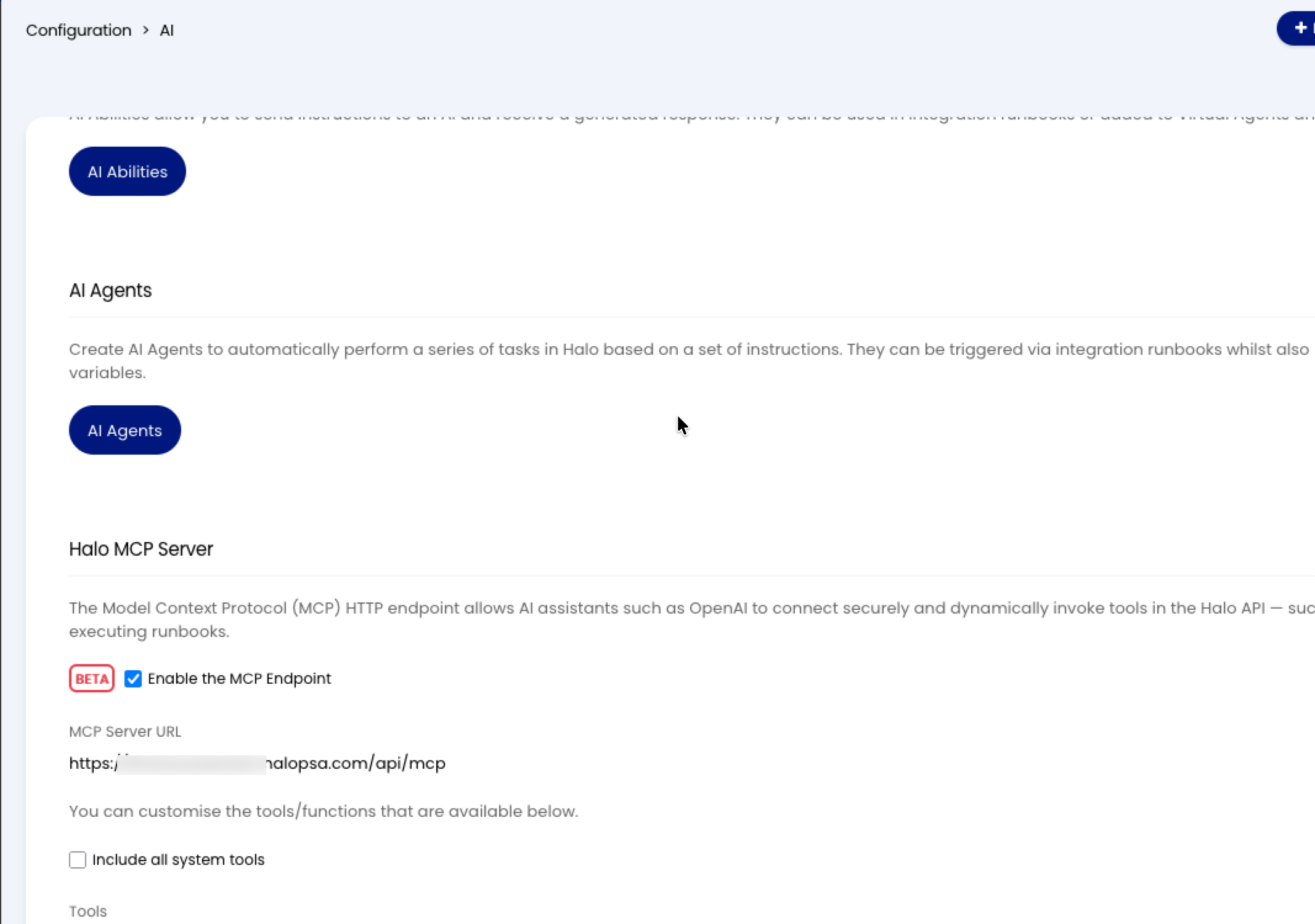
- Go to Configuration > AI and find the Halo MCP Server section.
- Turn on the Enable the MCP Endpoint setting (a beta feature). The MCP Server URL field shows your instance's endpoint --
https://<your instance>/api/mcp. This is the URL the Claude connector points at. - Optionally, customize which tools and functions the endpoint exposes in the list below the setting. If the section does not appear, select a Default AI Connection first -- the built-in default connection works if you have not configured a custom one.
3. Add the connector in claude.ai
- An organization owner adds the MCP endpoint URL from step 2 as a custom connector under Settings > Connectors in claude.ai. The connector's name must start with
GRCITSM(for example,GRCITSMorGRCITSM Dev) -- the plugin's workflows discover the connection by that prefix, and a connector named anything else is not picked up. - Each member completes the OAuth sign-in against your instance the first time they use the connector, authenticating through the Claude MCP OAuth application with their own agent account -- everything they do with AI is attributed to them.
- Once added, the connector is available across Claude chat, Cowork, and Claude Code for members signed in to your organization -- no per-tool or per-machine configuration.
Hosted tenants: already configured for you
Your Stratus Cyber engagement team performs the instance-side configuration (steps 1-2) as part of tenant delivery for hosted tenants. Those steps matter mainly for on-prem deployments and for verifying or rotating the configuration.
Additional details
- Halo MCP server connection guide -- the platform vendor's reference for the MCP endpoint and AI connections
- Halo guides library -- the entry point to the vendor's full guide catalog
- Claude custom connectors -- Anthropic's reference for adding and managing connectors
Install the plugin marketplace in Claude
The Stratus GRCITSM marketplace carries the grcitsm-analyst plugin, distributed as a ZIP file. An organization owner uploads it once and distributes it to the whole organization.
Download the marketplace (ZIP)
Upload the plugin to your organization
- Confirm Cowork and Skills are enabled for your organization.
- Download the current marketplace ZIP, and check its SHA-256 against the one published beside it.
- Go to Organization settings > Plugins in claude.ai.
- Click Add plugins and choose Upload a file.
- The first time, choose Upload to a new marketplace and give the marketplace a name (for example,
Stratus GRCITSM). - Drag in the ZIP file (50 MB maximum) and click Upload.
To update later, upload the new release's ZIP to the same marketplace -- a plugin with the same name overwrites the previous version in place. Once a day at session start, the plugin compares itself with the version published on this site and tells you when a newer release is available.
Distribute it to members
Set the plugin's distribution state after upload:
| State | Behavior |
|---|---|
| Installed by default | Auto-enabled for all members; members can remove it |
| Required | Auto-enabled for all members; members cannot remove it |
| Available for install | Members opt in through the Browse plugins modal |
| Not available | Hidden from members |
Members find the plugin under Browse plugins in Claude, and it is available in chat (web and desktop) and Cowork. See Anthropic's Manage plugins for your organization for the full administration reference.
Claude Code
Claude Code loads the same ZIP file directly -- the archive is plugin-shaped (.claude-plugin/plugin.json at its root), so no extraction or marketplace registration is needed:
- Download the ZIP to your machine.
-
Launch Claude Code with the plugin loaded:
Pointing
--plugin-dirat the extracted folder works the same way.
The OAuth connector from the previous section is already available -- connectors added in claude.ai carry over to Claude Code for members signed in to your organization. Two practices are worth adopting in each working project:
- Run
/grcitsm-analyst:setuponce per project. It verifies the connection, reports anything missing, and scaffolds the working directories the plugin's workflows use. Re-run it after plugin updates. - Let reads run freely, prompt on every write. The marketplace's
SETUP.mdincludes a recommended permission block that allowlists read operations and forces a yes/no prompt on every operation that changes a record. Your tenant is a live system of record; this is the posture we recommend for it.
Onboard your system (SSP/SDR)
Onboarding takes a new or empty instance to a fully populated security-documentation foundation: the system information, capabilities, components, control implementations, implemented requirements, implementation narratives, and parameter values your SSP or Security Decision Record renders from. One guided flow owns the whole journey, and you do not need to know the asset model to run it.
Start it in Claude Code with the connector and plugin configured (see the sections above):
/grcitsm-analyst:sdr-onboard is the same flow under its FedRAMP 20x name -- both artifacts render from the same foundation. You can also ask -- "where do I start with our SSP?" -- and the plugin detects your instance's state and starts at the right point.
What to have ready
- Any written material you have. Policies and procedures are the highest-yield inputs; meeting transcripts, an old SSP in any format, and even rough notes all extract. Drop them in the working folder when the flow asks -- overlap and contradictions between files are fine, the reconciliation surfaces them for you to resolve. Architecture diagrams as images are not read; describe the boundary in text or cover it in the interview.
- The right people. The system-framing interview (boundary, network architecture, data flow) goes best with whoever knows the architecture; per-capability interviews (identity, logging, incident response, ...) go best with whoever owns that operational area. Sessions checkpoint and resume, so nobody has to be in the room at once.
- Your baseline choices. Which FedRAMP or CMMC baselines the system certifies against -- the flow presents your instance's actual options to pick from.
How it runs
| Stage | What happens | What it writes |
|---|---|---|
| 1. State detection | Verifies the connection, resolves which system you are onboarding, and probes what already exists | Nothing |
| 2. Foundation bootstrap | If the system information is empty: three facts -- System Name, short name, baselines -- and the framework skeleton is created, with a placeholder for every control in scope | One small approved write |
| 3. Gather | Documents are extracted and cited line-by-line; interviews structure your plain answers into documentation-grade narrative. Use either or both -- most systems do both | Nothing -- everything lands in a local working copy |
| 4. Gap loop | After each pass, a coverage report names what is well covered and what is missing, per capability. Add more documents, take a targeted interview, or accept the gaps as documented | Nothing |
| 5. Review and approve | The complete change plan renders in plain language -- every proposed record, old and new values, and the source it came from. Approve everything, approve specific rows, or describe edits in plain English | Nothing until you approve |
| 6. One bulk write | The approved plan applies to your instance as a single disciplined bulk operation, followed by a verification pass that confirms what landed | Everything, once |
Everything is assembled locally first
Between the bootstrap and your final approval, nothing touches your instance. The whole system definition is built and refined as one local working copy -- reviewed for accuracy, coherence, and coverage against your baselines as a whole, rather than written piecemeal. That is deliberate: cross-references stay consistent, duplicates get merged before they exist as records, and you approve the complete picture once instead of approving fragments dozens of times.
Plan for more than one sitting
A full system definition is a real body of work -- expect several sessions, not one. Progress is checkpointed continuously: stop anytime, and the flow resumes where it left off without re-asking what it already captured. The final bulk write can also take a while on a large system (it is creating or updating hundreds of records, followed by a verification pass); start it when you do not need the answer in the next few minutes.
Keep it current (refresh and updates)
After onboarding, your instance is the source of truth -- people update records in the UI, AI-assisted changes land through approvals, and the documentation renders from live state. Updates are incremental; you never re-run onboarding over a populated system. Match the change to the path:
| What changed | What to do |
|---|---|
| A narrative is wrong, a parameter value moved | Ask in chat -- small fixes are made as direct reviewed edits, each shown to you for approval before it lands |
| A policy or procedure was revised, or new documents exist | /grcitsm-analyst:ssp-ingest -- extracts the documents, diffs them against current state, and proposes only the changes, with row-level approval |
| A capability area needs to be extended or filled in | /grcitsm-analyst:ssp-interview --additive -- reads what exists and asks only about what is missing |
| New components, a re-architecture, a bulk migration | The flow captures current state into a working copy first, applies your changes against it, and guards the write-back against anything that changed on the instance in the meantime |
| You want the current SSP/SDR document | /grcitsm-analyst:ssp-generate -- renders it read-only from live state, anytime |
Two habits keep the foundation trustworthy:
- Ingest documents when they change, not before an audit. A revised access-control policy is a five-minute ingest the week it ships; twelve months of drift is an onboarding-sized effort.
- Render after meaningful changes.
/grcitsm-analyst:ssp-generatealso produces a gap report -- running it after a change cycle shows you what the documentation now says and what it still lacks.
Same rules, whatever the size
Every path above ends in the same discipline: proposed changes are shown before they execute, writes carry your identity, and the record trail shows what changed and why. The paths differ only in how much machinery stands between you and the write -- a one-line fix does not need a working copy, and a re-architecture should not be applied line by line.
Run your system (ongoing operations)
Once the documentation foundation exists, the work that keeps a system certified is operational: vulnerabilities age against their timeframes, changes need notices, incidents need reports, recurring continuous-monitoring obligations fall due, and validations pass or fail. GRC-ITSM handles this with the Operations Meeting, a recurring, recorded review of the system from its own records, with every decision written back to the ticket it concerns. The full policy and procedure is published as Operations Meetings, with a downloadable KB article you can import into your own instance like the other policy documents.
The shape of it:
| Element | What it is |
|---|---|
| One Project per period, one task per meeting | Each period (a calendar quarter by default) has one Project per system; each meeting is a Project Task under it carrying the agenda, the meeting note, and the time spent |
| The status report | The meeting's only input, rendered from current records before every meeting: executive pages with headline numbers and their change since last time, a certification-risk block, an actions list, then one detail section per area and a system-information appendix |
| Certification risks first | For a system with a compliance program, open items are ranked by how directly they threaten certification -- Certification-Critical, At Risk, Watch -- from the strength of the FedRAMP rule, the system's class and track, and whether that rule family binds yet. Certification-Critical items leave the meeting with an owner and a date |
| A fixed nine-item agenda | What changed, actions, tasks due across open projects, changes and approvals, register rows, obligations, incidents, and validation posture, decisions, items raised without a ticket, and the debrief assignment. A system with no compliance program runs the seven non-compliance items |
| Outcomes on the tickets | Each discussed ticket receives one note with its decision, action, owner, and due date; the meeting task receives the meeting note; time is logged against the period budget. Decisions reached by email or chat between meetings are captured the same way with their source named |
What is available today
The Operations Meeting process and the platform records it works from are available now. The guided plugin commands that render the status report as a Word document, compute the certification-risk register, and compose the meeting's outcomes as one reviewable change set are not yet available; until then, the report is prepared from the platform's own reports, and the assistant helps through the capability areas above. This page is updated if and when they ship.
Where AI fits. You prepare and close the meeting with AI assistance, under the same approval discipline as everything else on this page. Today, using the capability areas above:
- Before the meeting -- the assistant creates the period Project and the meeting task (project management, above) and reads the records the report draws on: findings, deviations, changes, Key Security Indicator status, and open projects.
- After the meeting -- from your transcript or notes, it drafts each outcome, matches it to its ticket, and drafts the per-ticket notes and the meeting note for your approval before anything posts.
- Between meetings -- decisions reached by email or chat are recorded on their tickets with the source named, at the next debrief by default.
Guardrails and best practices
AI with write access to a live system of record deserves the same discipline as any privileged integration:
- Attributable identity. Members authenticate as themselves, so every AI action carries a real name. Grant the MCP Access role deliberately -- it is the lever for who can use AI against the tenant, and removing it (or deactivating the Claude MCP OAuth application) revokes access.
- Writes get human review. Configure Claude so that record-changing operations always prompt for approval. Reads are safe to run freely; changes are not.
- Least privilege. Scope the OAuth application and agents' roles to the permissions the work actually needs, and widen them only when a workflow demands it.
- Non-production first. Trial new AI workflows against a UAT or development instance before pointing them at production.
- Protect credentials. Treat the client secret like any privileged credential: rotate it with Generate when in doubt (the old secret stops working immediately), and never put it in version control or chat messages.
- Keep sessions focused. Long AI sessions accumulate context and drift; start fresh sessions for distinct pieces of work.
Changes are yours to approve
An AI assistant proposes and executes -- it does not own the outcome. Keep write operations behind an approval prompt, review what is about to change before confirming, and treat anything AI wrote to a record as work product to verify, exactly as you would a new team member's.
Additional details
- Best Practices for Claude Code in Halo -- the platform vendor's risk and mitigation guidance for agentic AI tooling
- Claude Code security documentation -- Anthropic's reference on permissions and safeguards